
Table of Contents
Importing the .FBX File
After finishing the mesh and rigging process in Blender and exporting the vehicle correctly (see Creating a Vehicle in Blender (Rigging)), the next step is importing the FBX file into Unreal Engine.
This step is critical, as incorrect import settings or an inconsistent asset workflow can cause problems later when creating:
- physics assets
- animations
- vehicle Blueprints
- material and repaint setups
Preparing the Folder Structure
Before importing the FBX file, we strongly recommend setting up a clean and well-organized folder structure inside your plugin.
A consistent structure:
- avoids asset duplication
- simplifies maintenance
- scales well for larger vehicles and variants
In the Content Drawer, navigate to your plugin content folder:
`[Plugin_Name]_Content`
Create the following base structure:
- Vehicles
- TestVehicle
- Meshes
- Materials
- Textures
Depending on the complexity of the vehicle, additional subfolders are recommended:
- Exterior
- Interior
- Cab
This structure allows a clear separation of responsibilities and keeps vehicle assets manageable.
Importing the FBX File
Once the folder structure is prepared, navigate to:
`Vehicles / TestVehicle / Meshes / Exterior`
With this folder selected in the Content Drawer:
- click Import
- select your exported FBX file
After selecting the file, the Unreal Engine FBX Import Dialog will open.
FBX Import Settings
In the import dialog, several settings must be configured correctly to ensure a clean and maintainable result.
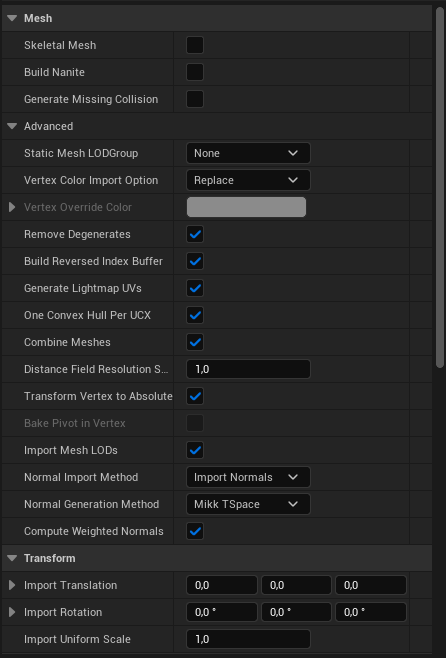
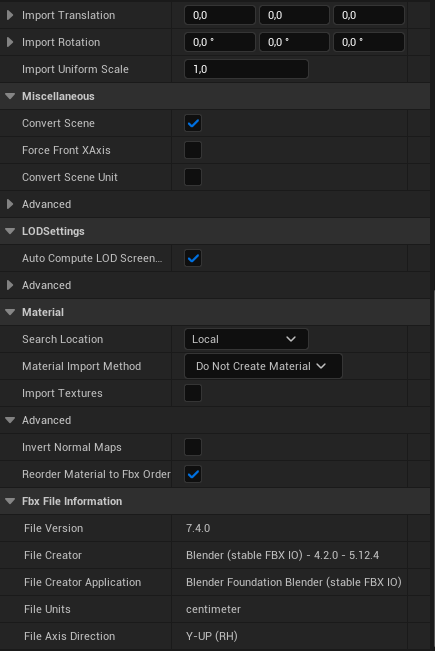
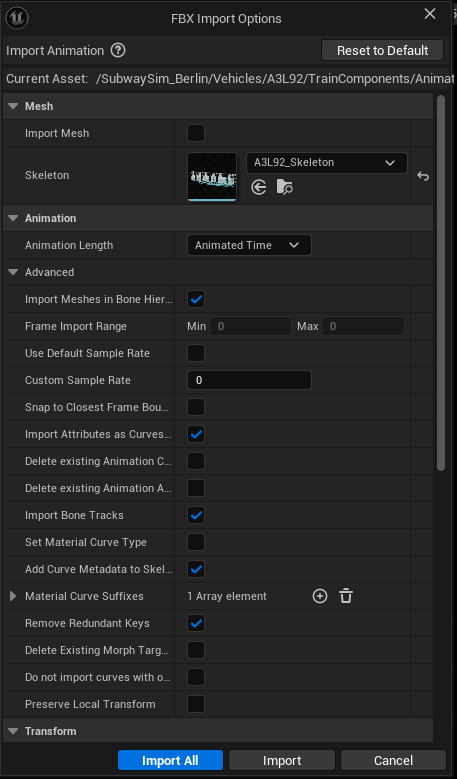
Please refer to the screenshots below showing the recommended import settings.
⚠️ Important note about materials and textures
For vehicle development using the SubwaySim SDK, it is strongly recommended to:
- Disable automatic material creation
- Disable automatic texture import
Recommended settings:
- Import Mesh: enabled
- Import Skeletal Mesh: enabled (if applicable)
- Import Animations: enabled only if animations are included
- Import Materials: disabled
- Import Textures: disabled
These settings ensure full control over the material workflow and prevent unnecessary duplication.
Once all settings are verified, confirm the import.
Import .FBX to Static Mesh:
Import .FBX to Skeletal Mesh:
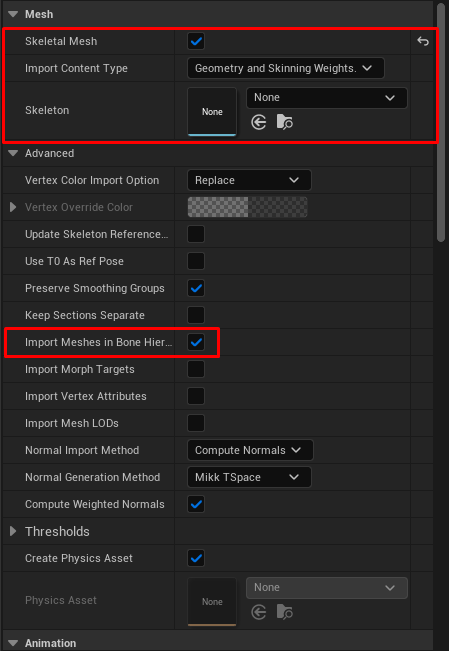
Import .FBX with Animations:
Why Automatic Material Generation Is Not Recommended
When Unreal Engine automatically generates materials during FBX import, it creates:
- one new Material asset per FBX material
- no reuse of existing Master Materials
- no use of Material Instances
This leads to several common issues:
- duplicated materials across vehicles and variants
- inconsistent shading and parameters
- increased maintenance effort
- poor scalability for larger projects
- problems when creating repaints or liveries
For small test projects this behavior may be acceptable, but for production-ready mods and SDK-based vehicle development, it is not recommended.
Instead, materials should be:
- created manually
- based on shared Master Materials
- reused via Material Instances where possible
Organizing Imported Assets
After the import process is complete, Unreal Engine will generate the following assets automatically:
- a Skeletal Mesh (main vehicle mesh)
- a Physics Asset
- a Skeleton
⚠️ Materials and textures are NOT generated automatically when automatic import is disabled (recommended).
Instead, proceed as follows:
- Import textures manually into the Textures folder
- Create Materials or Material Instances manually in the Materials folder
- Assign materials to the Skeletal Mesh explicitly
Recommended asset organization:
- Textures → Textures
- Materials / Material Instances → Materials
- Skeletal Mesh, Physics Asset, Skeleton → Meshes
This keeps the vehicle setup clean and avoids hidden dependencies.
Result
At this point:
- the vehicle mesh is correctly imported
- assets are cleanly structured
- no unnecessary materials or textures were generated
- the project is ready for further setup
You can now continue with the next step:
© 2026 Simuverse Interactive · SubwaySim 2 Modding Wiki
All trademarks and registered trademarks are the property of their respective owners. This Wiki is provided for documentation and modding purposes only.