
Table of Contents
Creating a Control Rig
The Control Rig is a central component of vehicle animation in SubwaySim 2. It controls important animated elements of the vehicle body and undercarriage and acts as a bridge between animation logic and the skeletal mesh.
Typical elements controlled via the Control Rig include:
- Wheels
- Couplings
- Bogies (trucks)
- Other mechanically driven components
Because a Control Rig is not generated automatically when importing an FBX file, it must be created manually.
Creating the Control Rig Asset
To create a Control Rig, navigate to the folder where your Skeletal Mesh is located.
In the Meshes directory:
- Right-click on your Skeletal Mesh
- In the context menu, search for Control Rig
- Select Create Control Rig
Unreal Engine will now generate a new Control Rig asset in the same folder.
Naming the Control Rig
The Control Rig should follow a clear and consistent naming convention.
We recommend:
- Using the same name as the vehicle or Skeletal Mesh
- Prefixing it with CR_
Example:
- Skeletal Mesh: `TestVehicle`
- Control Rig: `CR_TestVehicle`
This makes it easy to identify and reference the Control Rig later when working with Animation Blueprints.
Opening the Control Rig
Open the newly created Control Rig by double-clicking it.
You will now see the Control Rig editor, which consists of:
- The viewport displaying the Skeletal Mesh
- The graph editor for logic and node connections
- The Variables panel (located in the lower-left area)
Creating Required Variables
Before adding any logic or nodes, we must define the required variables.
These variables are used to receive values from Lua via the Animation Blueprint and apply them to the Skeletal Mesh.
In the Variables panel, create the following variables with the specified types:
- BogieRotation1 → Transform
- BogieRotation2 → Transform
- DeltaWay → Float
Make sure that the variable types are set correctly. These variables will later be used to drive rotations and positional changes of vehicle components based on simulation data.
At this point, the Control Rig asset is correctly created and prepared for further setup.
Setting Up the Control Rig Logic
After creating the required variables, we now continue with setting up the actual Control Rig logic.
Instead of building everything from scratch, we will reuse a proven setup provided by the Modding SDK.
Copying Nodes from the Sample Vehicle
Navigate to the Samplemod_Vehicle plugin and open the Control Rig of the sample vehicle A3L92.
Inside the Control Rig graph of the A3L92, copy the nodes shown in the provided screenshots and paste them into your own Control Rig.
This setup already contains all required logic to correctly process bogie and axle movement and is intended to be reused as a base for custom vehicles.
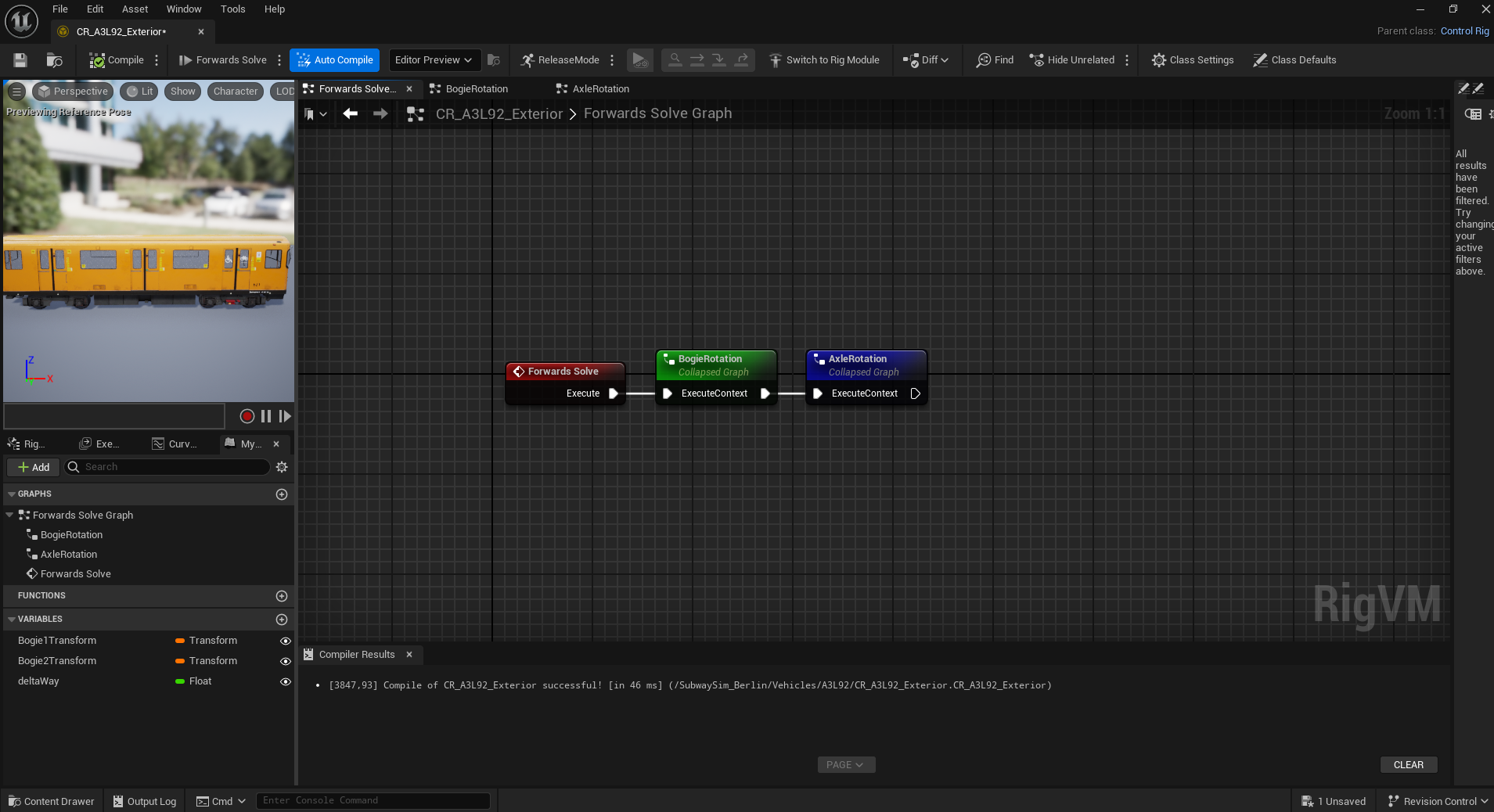
Verifying Imported Nodes
After pasting the nodes, it is important to verify that all imported functions and connections are correct.
Specifically, double-click the following functions:
- BogieRotation
- AxleRotation
Compare their internal node setups with the reference screenshots provided in this documentation.
Understanding Bogie and Axle Rotation
The AxleRotation function defines how each individual axle of the vehicle rotates. Each axle must be explicitly defined so that wheel rotation behaves correctly in-game.
The BogieRotation function works similarly, but applies to the rotation and movement of the bogies (trucks) themselves.
Both systems rely on incoming values provided by the simulation and passed through the Animation Blueprint into the Control Rig.
Fixing Missing Variable Nodes
If any variable nodes are missing after copying the setup:
- Locate the variable in the Variables panel (bottom-left)
- Drag the variable into the graph
- Connect the corresponding pins to the correct inputs
Make sure that all Transform and Float variables are connected exactly as shown in the reference setup.
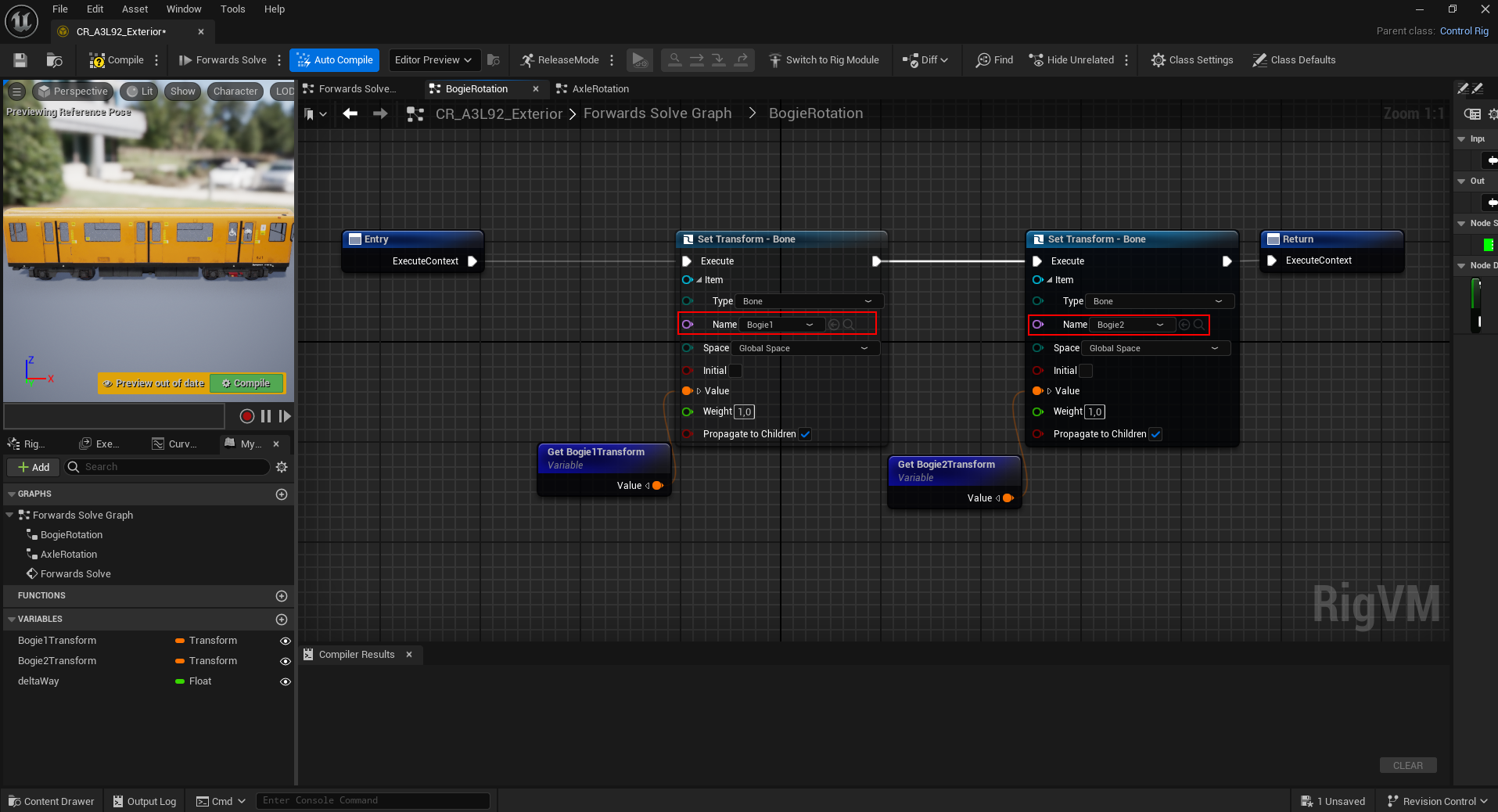
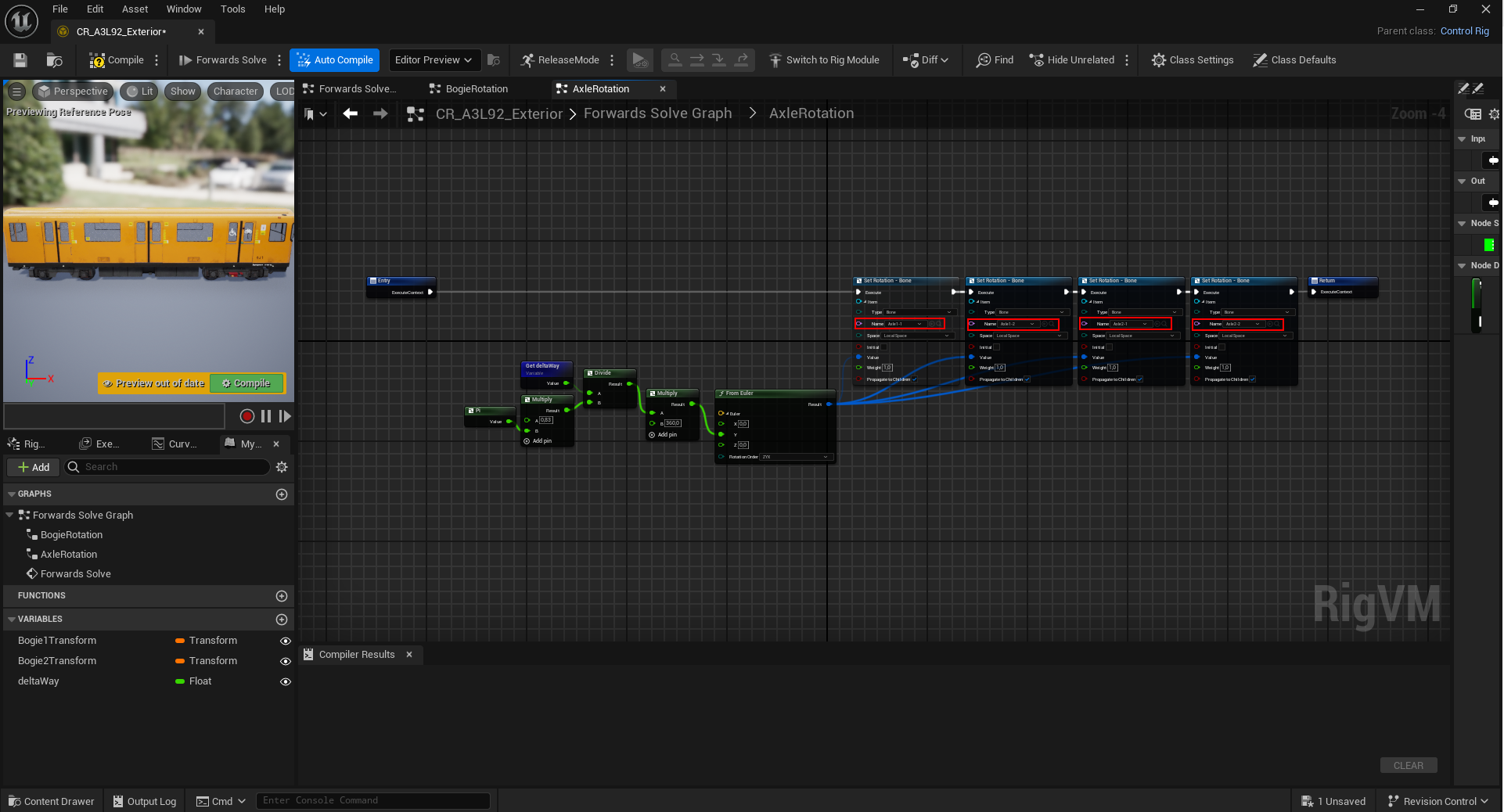
Assigning Bones Correctly
Inside the imported nodes (highlighted in red in the screenshots), all required bones must be assigned correctly.
For each node:
- Verify that the correct bone names are selected
- Ensure that the bone assignment matches your Skeletal Mesh structure
Incorrect or missing bone assignments will result in non-functional animations or incorrect movement behavior.
Finalizing the Control Rig
Once all nodes, variables, and bone assignments are set up correctly, the Control Rig must be compiled and saved.
To finalize the setup:
- Click the Compile button in the upper-left corner of the Control Rig editor
- Wait until the compilation completes without errors
- Click Save to store the Control Rig asset
Compiling ensures that:
- All nodes are evaluated correctly
- Variable connections are valid
- The Control Rig can be used by Animation Blueprints
If any errors or warnings appear during compilation, they must be resolved before continuing.
After compiling and saving, the Control Rig is fully functional and ready to be referenced by an Animation Blueprint.
© 2025 Simuverse Interactive · SubwaySim 2 Modding Wiki
All trademarks and registered trademarks are the property of their respective owners. This Wiki is provided for documentation and modding purposes only.