
This is an old revision of the document!
Table of Contents
Importing Switches
In this section, we explain how to place and use imported switches in SubwaySim 2 and when they are required.
Imported switches are used whenever the Railtool does not support a specific track layout. Typical examples include:
- double crossovers
- double slip switches
- special or asymmetric switch constructions
Because these layouts can be very complex and highly individual, they are created manually in a 3D application (such as Blender) and then imported into SubwaySim 2 as finished switch assets.
When Are Imported Switches Required?
The Railtool supports:
- standard turnouts
- simple crossovers
- regular procedural track geometry
However, some switch types are:
- too complex
- too custom
- or too irregular
to be generated procedurally.
In these cases, imported switches are the intended and correct solution.
Built-in Imported Switches
SubwaySim 2 already includes a large collection of imported switches used by the base game.
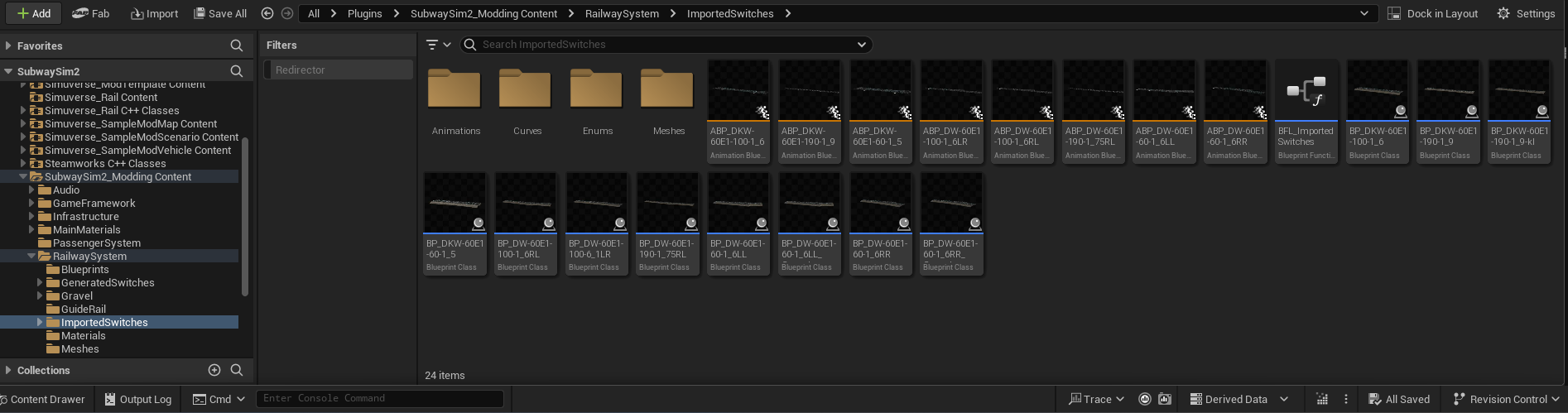
They can be found inside the SubwaySim2_Modding plugin under:
SubwaySim2_Modding / RailwaySystem / ImportedSwitches
This folder contains many ready-made switches that can be used directly in custom maps.
Important:
- Always use the BP_… variants
- Only these Blueprint actors contain the required logic for routing and Railtool integration
Placing an Imported Switch
To place an imported switch in your level:
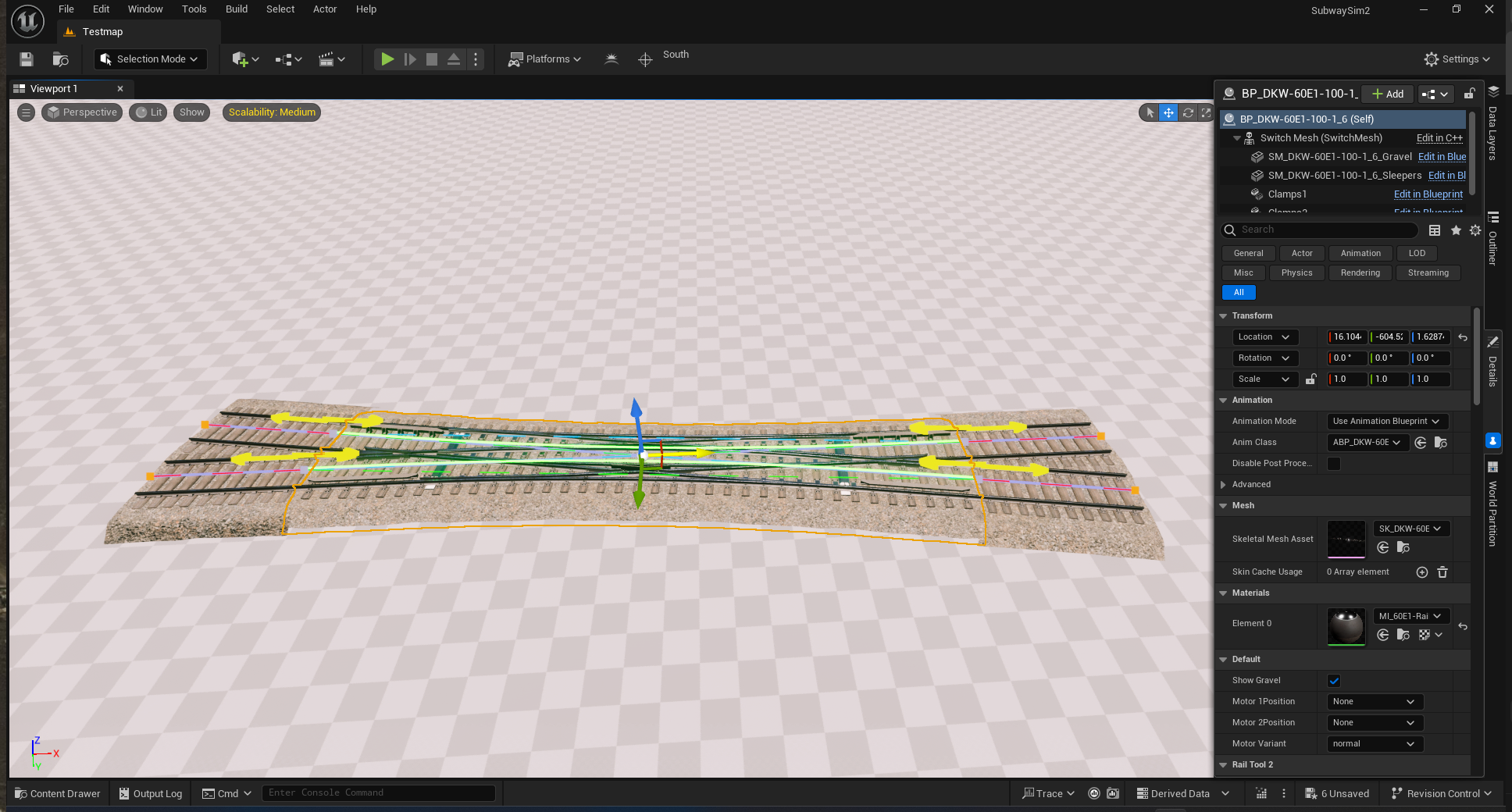
- Make sure you are in Selection Mode in the Unreal Editor
(not Railtool mode)
- Navigate to:
SubwaySim2_Modding / RailwaySystem / ImportedSwitches
- Drag the desired BP_ImportedSwitch Blueprint into the level
After placing the switch:
- it can be freely moved
- it can be rotated as needed
- positioning is done manually
Take your time to align the switch correctly with your intended track layout.
Connecting Imported Switches to Tracks
Once the switch is placed:
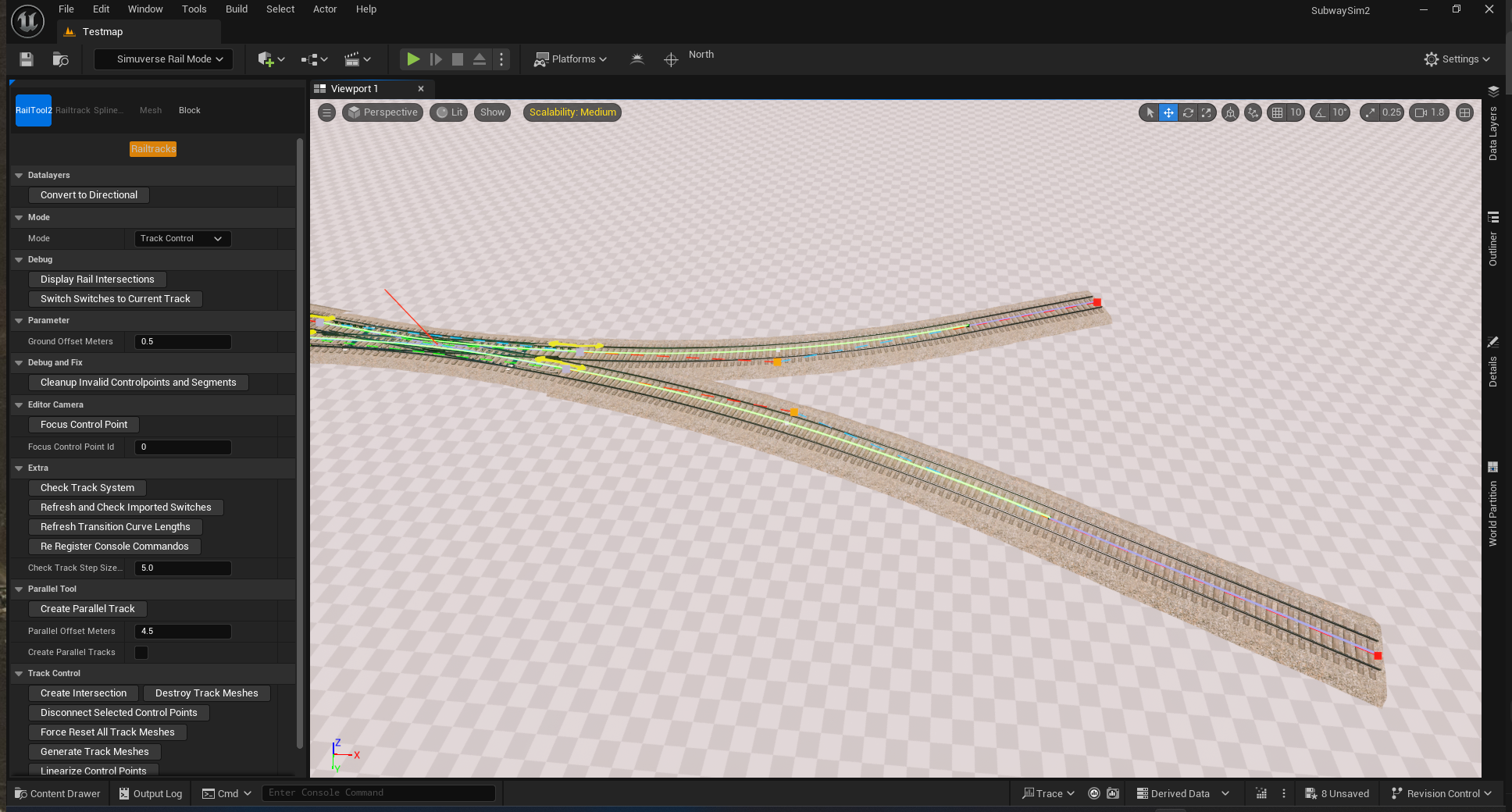
- switch to the Railtool
- use the Control Points of the imported switch
- connect Railtool track splines to the switch just like normal track elements
After this step:
- the imported switch behaves like any other Railtool-connected track
- AI routing, signaling, and dispatching can work normally
Creating Your Own Imported Switches
If none of the provided switches fit your needs, you can create your own imported switch.
Typical reasons include:
- unique geometry
- special crossover layouts
- prototype or fictional designs
Creating a custom imported switch involves:
- modeling the switch in a 3D tool (e.g. Blender)
- preparing meshes and pivots correctly
- importing the assets into the SDK
- creating the required Blueprint setup
This process will be explained in the next section.
Next Step
Continue with:
- Creating and Importing Custom Switches
(this section will be added next)
© 2026 Simuverse Interactive · SubwaySim 2 Modding Wiki
All trademarks and registered trademarks are the property of their respective owners. This Wiki is provided for documentation and modding purposes only.