
This is an old revision of the document!
Table of Contents
Creating a Superstructure
In this section of the Railtool documentation, we explain the fundamentals required to create railway tracks in SubwaySim 2.
A central and essential part of track construction is the so-called Superstructure. The Superstructure is a data asset that contains all important information required to build tracks, such as geometry, materials, rail profiles, and additional infrastructure data.
Without a Superstructure, the Railtool cannot create usable track segments.
Creating a Superstructure
To make it as easy as possible for users to get started, we recommend using an existing Superstructure that is already included in the Modding SDK.
However, for advanced users who want to understand how a Superstructure is created from scratch, the following steps explain the manual process.
Creating a New Superstructure Asset
First, create the required folder structure inside your plugin.
In your plugin content directory:
- Create a folder named Infrastructure
- Inside it, create another folder named Superstructures
Once you are inside the Superstructures folder:
- Right-click in the Content Drawer
- Select Data Asset
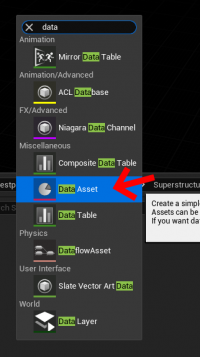
- In the class selection window, search for Super Structure Data Asset
- Select it and confirm
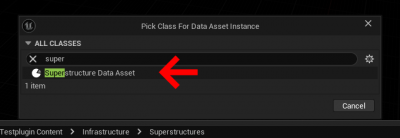
After creating the asset, name the Superstructure freely. We recommend choosing a name that reflects the type of track construction it represents (for example based on rail type or construction method).
Ready-to-Use Superstructures
Several preconfigured and ready-to-use Superstructures are already included in the SDK.
These can be found under:
`SubwaySim2_Modding / RailwaySystem / Superstructures`
Please note that these Superstructures do not include power rails and are mainly intended as examples or templates.
Migrating an Existing Superstructure
For most use cases, we recommend migrating an existing Superstructure from the sample content.
The default sample Superstructure can be found at:`Simuverse_SampleModMap / Infrastructure / RailwaySystem / DataAssets`
The asset is named:`DL_SampleMapDefault`
The migration process works exactly as described in:Migrating Assets into a User Plugin
Important
When migrating the Superstructure:
- Only migrate assets from the plugin `Simuverse_SampleModMap`
- Do NOT migrate assets from the plugin `SubwaySim2_Modding`
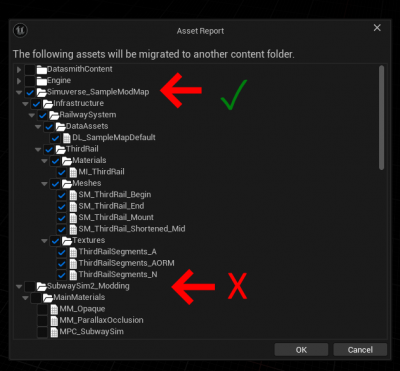
Migrating from the wrong plugin can cause dependency issues and errors in your mod.
Result After Migration
After a successful migration, the Superstructure and all required dependencies will be located under:
`SubwaySim_SDK_Testplugin / Infrastructure / RailwaySystem / DataAssets`
At this point, the Superstructure is available inside your plugin and ready to be used with the Railtool.
Explaining the Superstructure Contents
In this section, we explain how a Superstructure Data Asset is built and which information it contains.
The Superstructure defines all fundamental properties required by the Railtool to generate tracks correctly. It controls the visual appearance, physical layout, and functional behavior of the railway infrastructure.
The Data Asset is divided into three main sections:
- Base Settings – General track configuration and visuals
- Switches / Turnouts – Parameters for automatically generated switches
- Third Rail – Configuration of the power rail system
We will now go through these sections step by step.
Base Settings
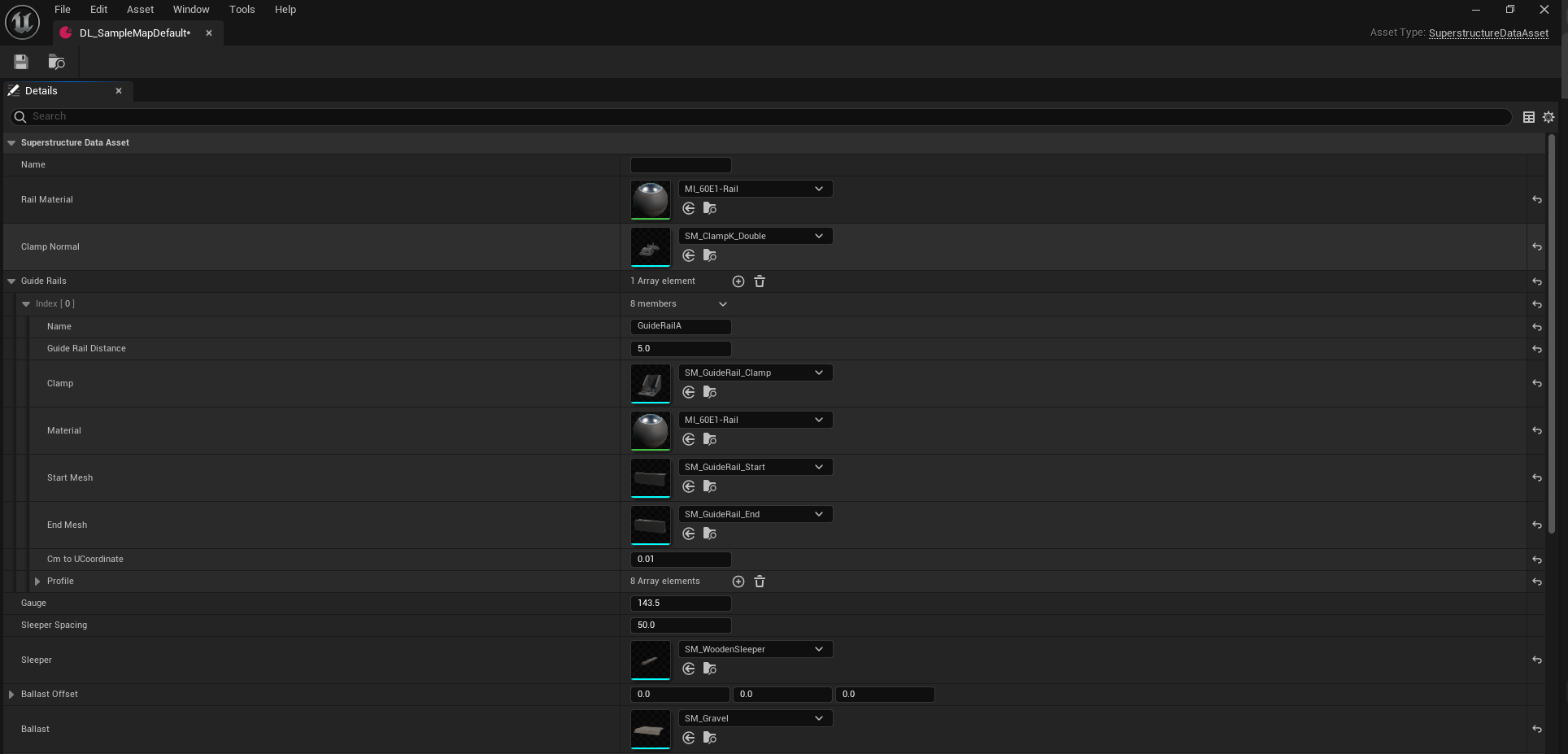
The Base Settings section contains all fundamental information required to create standard track segments.
These settings define how the track looks, how wide it is, and which meshes are used for rails, sleepers, and ballast.
Base Settings Overview
| Property | Description |
|---|---|
| Rail Material | Material applied to the rails and visible track geometry. |
| Clamp Normal | Static Mesh used for standard rail clamps that hold the rails in place. |
| Guide Rails | Defines additional guiding rails used in special track sections. |
| Gauge | Distance between the rails (track gauge). |
| Sleeper Spacing | Distance between individual sleepers. |
| Sleeper | Static Mesh used for a standard sleeper. |
| Ballast Offset | XYZ offset applied to the ballast mesh. |
| Ballast | Static Mesh used for the ballast bed. |
Rail Material
Defines the material that is applied to the rail geometry. This material controls the visual appearance of the rails, including color, roughness, and surface details.
Clamp Normal
Specifies the Static Mesh used for standard rail clamps. These clamps are placed along the track and visually represent how the rails are fixed to the sleepers.
Guide Rails
Guide Rails are additional rail elements used in specific track situations, such as:
- Switches
- Tight curves
- Special track sections
In railway terminology, Guide Rails are commonly referred to as:
- Guard Rails
- Guide Rails
- Zwangsschienen / Führungsschienen
They are used to guide wheelsets safely through complex track geometry.
Guide Rail Data Layer
A Guide Rail is defined using a Data Layer Asset.
This Data Layer can be assigned in the Railtool via the Data Layer functionality and controls how and where guide rails are generated along the track.
For Guide Rails to work correctly, several parameters must be defined carefully.
Guide Rail Parameters
The following table lists all parameters of a Guide Rail Data Layer and explains their purpose.
| Property | Description |
|---|---|
| Name | Name of the Guide Rail Data Layer asset. Used for identification inside the Railtool. |
| Guide Rail Distance | Distance from the standard rail profile to the guide rail. |
| Clamp | Static Mesh used as the holder or clamp for the guide rail. |
| Material | Material applied to the guide rail geometry. |
| Start Mesh | Static Mesh placed at the beginning of the guide rail section. |
| End Mesh | Static Mesh placed at the end of the guide rail section. |
| Cm to UCoordinate | Conversion factor from centimeters to Unreal texture coordinate units. |
| Profile | Defines the cross-section shape of the guide rail using coordinates instead of a mesh. |

Guide Rail Profile
The Profile defines the actual shape of the guide rail.
Unlike sleepers or ballast, the guide rail does not use a predefined Static Mesh. Instead, Unreal Engine generates the geometry procedurally based on profile coordinates.
Multiple profile indices can be added or removed:
- Use the + button to add a new profile index
- Use the Trash icon to remove an index
Each profile index contains the following parameters:
| Parameter | Description |
|---|---|
| X | X-coordinate of the profile point. |
| Y | Y-coordinate of the profile point. |
| V | UV position along the V-axis for texturing. |
| Hard Edge | Defines whether the edge is smoothed or kept sharp. |
By combining multiple profile indices, complex guide rail cross-sections can be created.
Important Notes
- All distances are defined in Unreal Units (cm)
- Guide Rail positioning must match the track gauge and wheel geometry
- Incorrect profile definitions can lead to visual artifacts or collision issues
Guide Rails are an advanced feature and should be configured carefully. For most standard track layouts, they are optional, but essential for complex or high-speed track sections.
Gauge
Defines the track gauge, which is the distance between the two rails.
The standard gauge is 1435 mm.
⚠️ Important: Unreal Engine units are centimeters, not millimeters.
Conversion:
- 1435 mm = 143.5 cm
The value entered here must be specified in Unreal units (cm).
Incorrect gauge values will result in:
- Incorrect wheel alignment
- Physics issues
- Visual inconsistencies
Sleeper Spacing
Defines the distance between individual sleepers along the track.
This value directly affects:
- Track appearance
- Performance (more sleepers = more meshes)
The spacing value is also defined in Unreal units (cm).
Sleeper
Specifies the Static Mesh used as the standard sleeper.
This mesh is repeated along the track at the defined sleeper spacing and forms the base support structure of the rails.
Ballast Offset
Defines the XYZ offset of the ballast mesh relative to the track center.
This allows fine-tuning of the ballast position to ensure correct alignment with sleepers and rails.
Ballast
Specifies the Static Mesh used for the ballast bed.
The ballast mesh represents the gravel or stone foundation beneath the track and is an essential visual component of the railway infrastructure.
Switches
The Switches section defines all meshes and parameters required for automatically generated switches (turnouts) created by the Railtool.
This includes:
- Visual components of the switch
- Mechanical elements such as blades and throw bars
- Guide rails inside switch areas
- Optional motorized or manual control elements
Guide rails within switches are generated automatically based on the parameters defined here.
Switches Overview
| Property | Description |
|---|---|
| Switch Guard Dist | Distance of the guide rail at the exit of the switch. |
| Clamp Mini Inner | Smaller clamp used at the beginning of a switch. |
| Clamp Blade | Clamp for rails including guidance for the switch blade. |
| Clamp Guard | Clamp used for rails carrying an additional guide rail. |
| Clamp Single Inner Half | Single inner rail clamp for individual rail sections. |
| Clamp Single Outer Half | Single outer rail clamp for individual rail sections. |
| Hollow Sleeper | Sleeper mesh containing internal switch linkage. |
| Switch Motor | Mesh for electrically driven switch motors. |
| Manual Switch Lever | Blueprint used for manually operated switches. |
| Switch Blade Throw Bar | Mechanical linkage that moves the switch blade. |
| Clearance Marker Mesh | Clearance marker automatically placed near switches. |
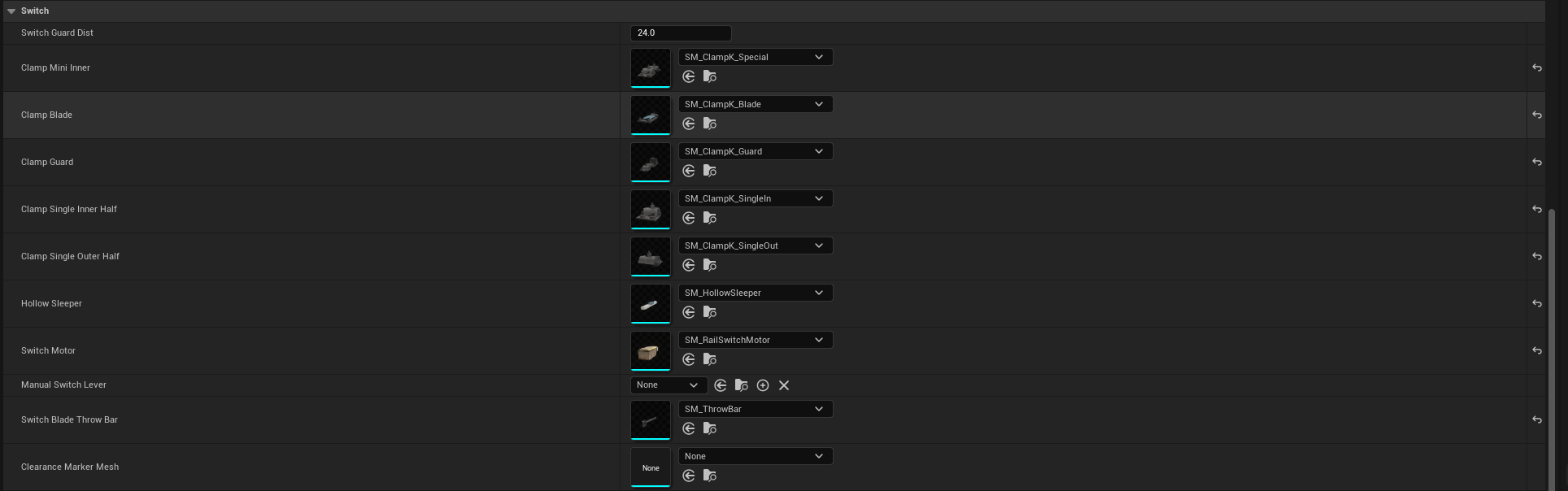
Switch Guard Dist
Defines the distance of the guide rail at the exit of the switch.
This value controls how far the guide rail extends beyond the switch geometry to safely guide wheelsets after leaving the turnout.
Clamp Mini Inner
Defines a smaller clamp mesh used at the beginning of a switch.
This clamp is typically used where space is limited and standard clamps would collide with switch components.
Clamp Blade
Defines the clamp mesh used for rails that include guidance for the switch blade (tongue).
This clamp ensures correct positioning and movement of the switch blade during operation.
Clamp Guard
Defines the clamp mesh used for rail sections that also carry a guide rail.
This clamp variant supports both the main rail and the guide rail simultaneously.
Clamp Single Inner Half
Defines a single inner rail clamp used for individual inner rail sections.
This is typically used in areas where only one rail needs to be clamped independently.
Clamp Single Outer Half
Defines a single outer rail clamp used for individual outer rail sections.
This allows more flexible placement of clamps in complex switch geometries.
Hollow Sleeper
Defines the sleeper mesh that contains the internal switch linkage.
This sleeper type is used in switch areas where mechanical components such as throw bars or rods are located inside the sleeper.
Switch Motor
Defines the mesh used for an electrically driven switch motor.
This mesh is placed automatically when creating motorized switches using the Railtool.
Manual Switch Lever
Allows assigning a Blueprint used for manual switch operation.
A ready-to-use Blueprint is provided:
- BP_SwitchLever01
Switch Blade Throw Bar
Defines the mechanical linkage connected to the switch blade.
The throw bar is responsible for physically moving the switch blade between its positions.
Clearance Marker Mesh
Defines the mesh used for clearance markers.
Clearance markers are placed automatically in areas where vehicles must remain clear to avoid collisions, indicating the safe clearance limit near switches.
Third Rail
The Third Rail section defines the power rail system used by vehicles with a side-mounted current collector and an active PowerComponent.
The third rail is required for electric vehicles to receive power. If a track section does not contain a Third Rail Data Layer, affected vehicles will display the message:
“No Power”
in the in-game HUD.
The Third Rail is implemented as a Data Layer Asset, similar to Guide Rails, and can be assigned using the Railtool’s Data Layer functionality.
Third Rail Overview
| Property | Description |
|---|---|
| Third Rail Begin | Static Mesh placed at the beginning of the third rail section. |
| Third Rail Mid | Looping Static Mesh used along the main length of the third rail. |
| Third Rail End | Static Mesh placed at the end of the third rail section. |
| Third Rail Mount | Mesh used as the holder for the third rail, placed individually on sleepers. |
| Third Rail Offset | XYZ offset used to position the third rail relative to the track. |

Third Rail Begin
Defines the Static Mesh placed at the start of a third rail section.
This mesh visually represents the transition from a non-powered to a powered track segment.
Third Rail Mid
Defines the looping Static Mesh used for the main length of the third rail.
This mesh is repeated automatically along the track wherever the Third Rail Data Layer is active.
Third Rail End
Defines the Static Mesh placed at the end of a third rail section.
This mesh visually represents the termination of the power rail.
Third Rail Mount
Defines the mesh used as the third rail holder.
⚠️ Important: The holder mesh must be a single, individual mesh, not a combined or grouped mesh.
This is required so the holder can be placed correctly on each sleeper by the Railtool.
Third Rail Offset
Defines the XYZ offset of the third rail relative to the track center.
This allows precise positioning of the power rail to match:
- Vehicle current collector position
- Track gauge
- Regional infrastructure standards
All offset values are defined in Unreal Units (cm).
Important Notes
- Third Rail Data Layers must be present on powered track sections
- Vehicles without a compatible current collector will ignore the third rail
- Incorrect offsets can lead to visual misalignment or loss of power detection
The Third Rail configuration is essential for electric vehicles and must be set up carefully to ensure reliable power supply during gameplay.
© 2026 Simuverse Interactive · SubwaySim 2 Modding Wiki
All trademarks and registered trademarks are the property of their respective owners. This Wiki is provided for documentation and modding purposes only.