
This is an old revision of the document!
Table of Contents
Creating a Superstructure
In this section of the Railtool documentation, we explain the fundamentals required to create railway tracks in SubwaySim 2.
A central and essential part of track construction is the so-called Superstructure. The Superstructure is a data asset that contains all important information required to build tracks, such as geometry, materials, rail profiles, and additional infrastructure data.
Without a Superstructure, the Railtool cannot create usable track segments.
Creating a Superstructure
To make it as easy as possible for users to get started, we recommend using an existing Superstructure that is already included in the Modding SDK.
However, for advanced users who want to understand how a Superstructure is created from scratch, the following steps explain the manual process.
Creating a New Superstructure Asset
First, create the required folder structure inside your plugin.
In your plugin content directory:
- Create a folder named Infrastructure
- Inside it, create another folder named Superstructures
Once you are inside the Superstructures folder:
- Right-click in the Content Drawer
- Select Data Asset
- In the class selection window, search for Super Structure Data Asset
- Select it and confirm
After creating the asset, name the Superstructure freely. We recommend choosing a name that reflects the type of track construction it represents (for example based on rail type or construction method).
Ready-to-Use Superstructures
Several preconfigured and ready-to-use Superstructures are already included in the SDK.
These can be found under:
`SubwaySim2_Modding / RailwaySystem / Superstructures`
Please note that these Superstructures do not include power rails and are mainly intended as examples or templates.
Migrating an Existing Superstructure
For most use cases, we recommend migrating an existing Superstructure from the sample content.
The default sample Superstructure can be found at:`Simuverse_SampleModMap / Infrastructure / RailwaySystem / DataAssets`
The asset is named:`DL_SampleMapDefault`
The migration process works exactly as described in:Migrating Assets into a User Plugin
Important
When migrating the Superstructure:
- Only migrate assets from the plugin `Simuverse_SampleModMap`
- Do NOT migrate assets from the plugin `SubwaySim2_Modding`
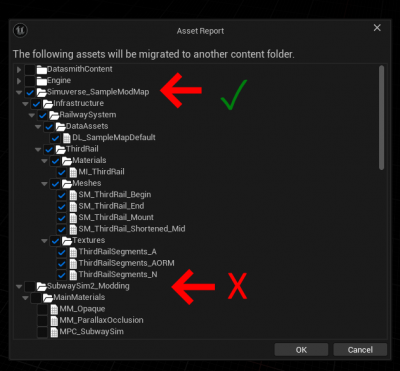
Migrating from the wrong plugin can cause dependency issues and errors in your mod.
Result After Migration
After a successful migration, the Superstructure and all required dependencies will be located under:
`SubwaySim_SDK_Testplugin / Infrastructure / RailwaySystem / DataAssets`
At this point, the Superstructure is available inside your plugin and ready to be used with the Railtool.
Explaining the Superstructure Contents
In the next section, we will go through the contents of the Superstructure step by step and explain what each setting is used for and how it affects track creation.