
Table of Contents
Updating the Modding SDK
When a new version of the Modding SDK is released on GitHub, it is important to merge it into your project as soon as possible.
Failing to update the SDK in time can lead to:
- Compatibility issues after game updates
- Missing features or fixes
- Errors during cooking or packaging
- Unexpected behavior in-game
General Update Strategy
In principle, merging a new SDK version is straightforward. However, we strongly recommend doing this in a structured and controlled way to avoid breaking your project.
The safest approach is:
- Download the new SDK version
- Integrate the changes step by step
- Start at the top-level structure and work your way down
Avoid blindly overwriting your existing SDK directory.
Recommended Update Workflow
After downloading and extracting the new SDK version:
- Open the new SDK folder next to your existing project
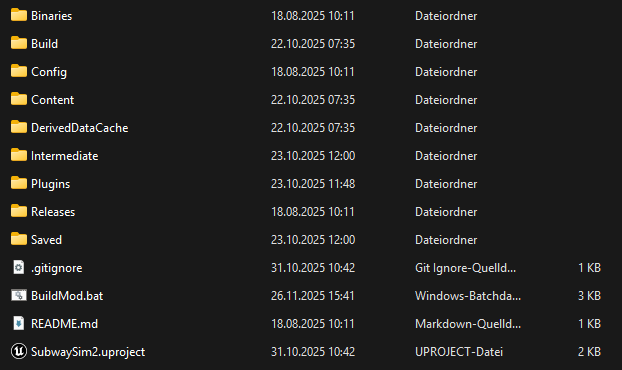
- Compare the directory structure starting from the root
Typical root folders include:
- Binaries
- Build
- Config
- Content
- Plugins
- Releases
- Saved
- BuildMod.bat
- SubwaySim2.uproject
Copy or merge folders one by one, checking whether you have made local changes in your existing SDK.
Plugins and Project Content
When updating SDK plugins:
- Never overwrite your own project plugin
- Only merge SDK-provided plugins
- Leave your custom plugin folders untouched
Always verify that:
- Plugin names remain unchanged
- No references to your custom content are lost
Final Checks
After merging the new SDK version:
- Open SubwaySim2.uproject
- Let Unreal Engine recompile shaders if required
- Check the Output Log for warnings or errors
- Run BuildMod at the Modding Tools once to verify that cooking still works
If everything completes without errors, the SDK update was successful.
Keeping your Modding SDK up to date ensures long-term compatibility with SubwaySim 2 and prevents issues when new game updates are released.
© 2026 Simuverse Interactive · SubwaySim 2 Modding Wiki
All trademarks and registered trademarks are the property of their respective owners. This Wiki is provided for documentation and modding purposes only.