Table of Contents
Creating Physics Assets
Physics Assets are a crucial part of vehicle development in SubwaySim 2. They are required to define the collision behavior of a vehicle inside the game and are also essential for interaction systems.
Without a properly set up Physics Asset:
- The vehicle will have incorrect or missing collisions
- Interaction with cockpit elements such as levers, switches, and buttons will not work
- Physics-based systems may behave unpredictably
Automatically Generated Physics Assets
As learned in the previous section, Unreal Engine automatically creates a Physics Asset when importing an FBX file as a Skeletal Mesh.
While this automatic setup is useful as a starting point, it is not suitable for our purposes. Automatically generated Physics Assets often contain:
- Incorrectly sized collision shapes
- Overlapping or unnecessary colliders
- Poorly aligned collision bodies
For this reason, we will manually rebuild the Physics Asset.
Opening the Physics Asset
Navigate to the Meshes folder where your Skeletal Mesh is located and open the corresponding Physics Asset.
Once opened, you will see:
- The vehicle mesh displayed in the viewport
- Collision shapes shown as pink, semi-transparent bodies
- A panel on the left listing all bones and existing collision bodies
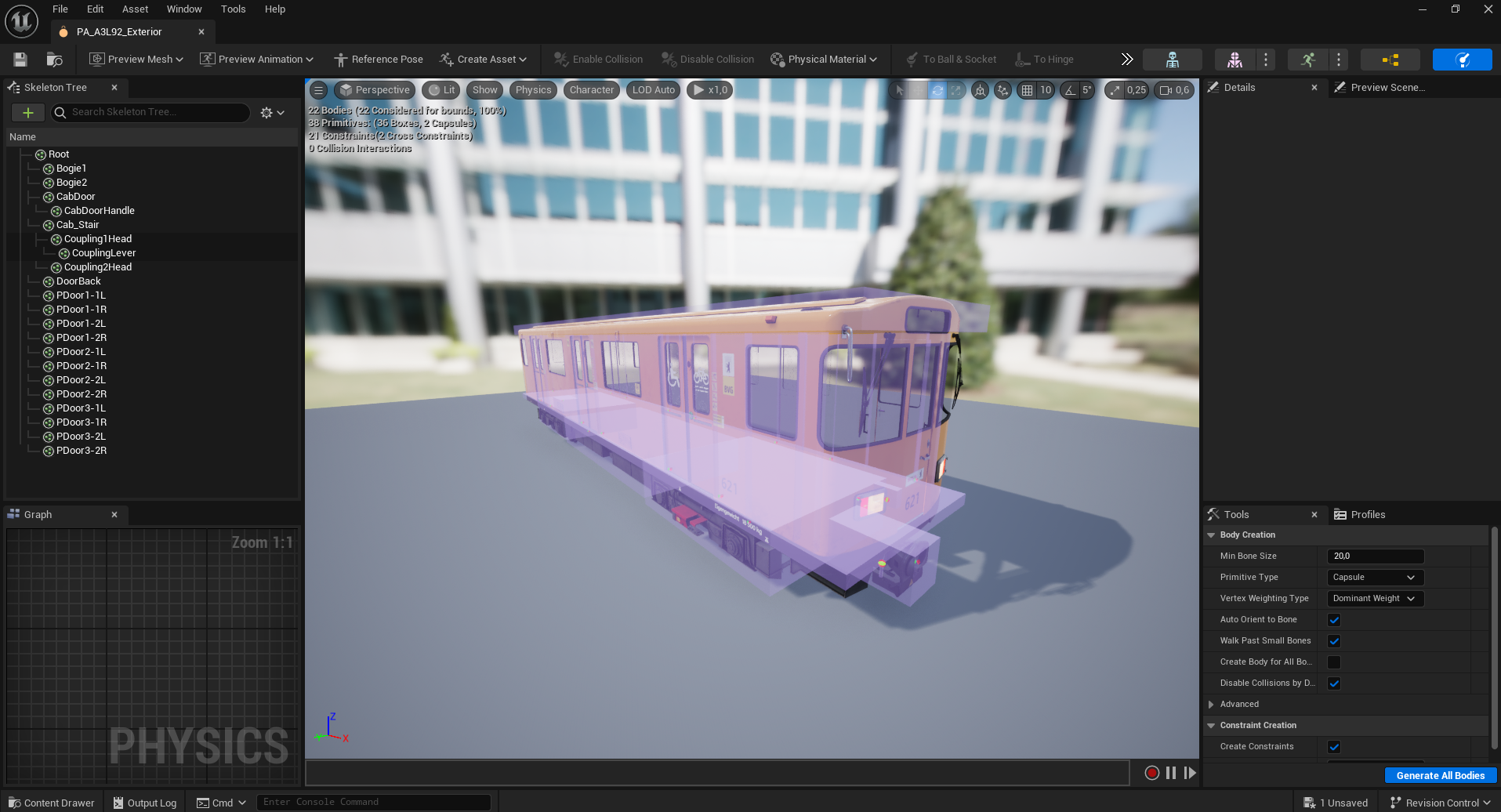
Removing the Generated Collisions
In the left-hand panel, you will see all bones that currently have collision shapes assigned.
These automatically generated collision bodies can be deleted entirely:
- Select all existing collision bodies
- Delete them
After deleting them, the viewport may appear empty. This is expected and simply means that no collision shapes are currently assigned.
Displaying All Bones
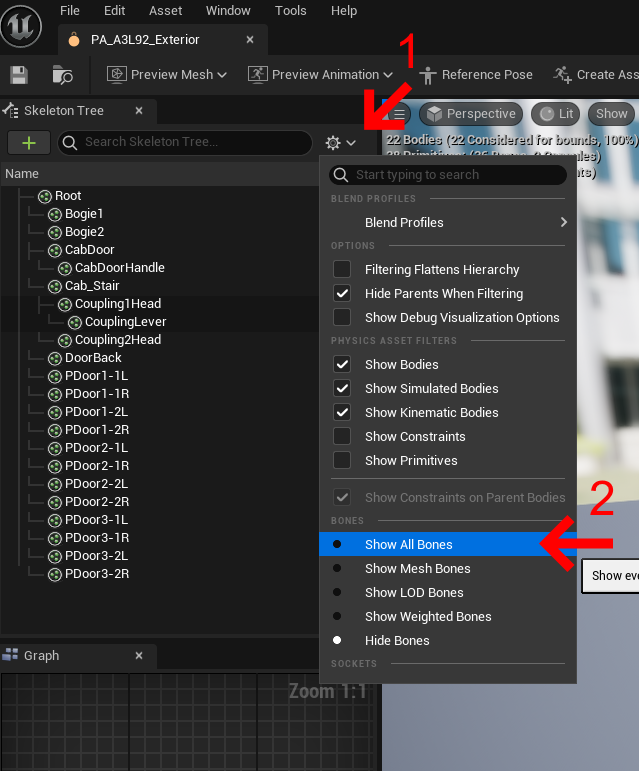
At this point, only the Physics Asset elements are visible. To continue working, we need to display all bones of the skeleton.
In the Physics Asset editor:
- Open the Settings menu
- Enable Show All Bones
All bones of the Skeletal Mesh will now be visible again, allowing us to assign new collision shapes.
Adding Collision Shapes
To add a collision shape to a bone:
- Right-click on the desired bone
- Select Add Shape
- Choose a shape type
Available shapes include:
- Box
- Sphere
- Capsule
- Convex
For most vehicle components, starting with a Box shape is recommended.
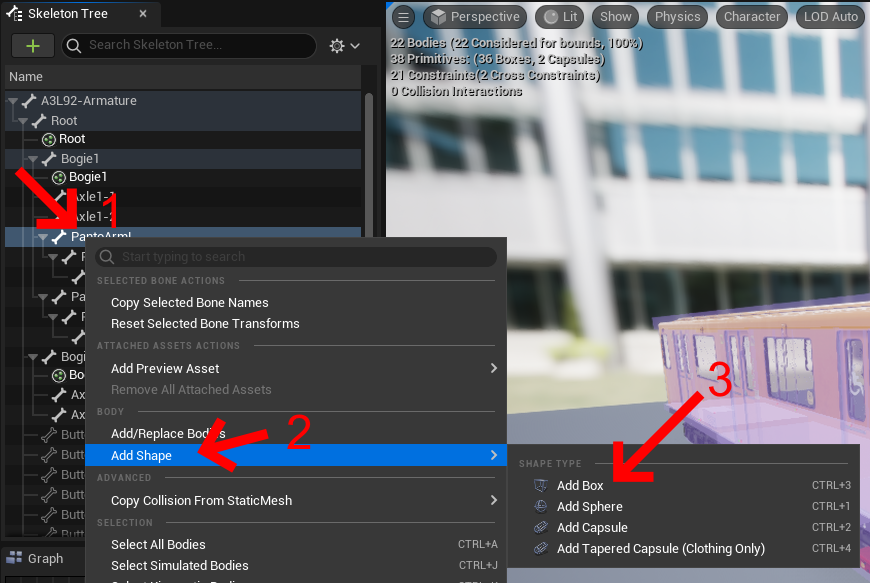
Once added, the collision shape will appear in the viewport. You can adjust its position, rotation, and scale using the standard Unreal Engine transform tools.
Adding Collision Shapes with Shortcuts
In the Physics Asset Editor, you can quickly add collision shapes using both the right-click menu and keyboard shortcuts.
Unreal Engine provides a set of convenient shortcuts to speed up your workflow when creating and editing collision shapes:
- Right-click → Add Shape
This opens a context menu where you can choose from basic shapes such as:
- Box
- Sphere
- Capsule
- Convex
- Keyboard Shortcuts
While there are no officially documented global default keys exclusively reserved for specific collision shapes, users often assign or use shortcuts such as:
- Ctrl + 2 / Ctrl + 3 / Ctrl + 4
Custom shortcut combinations can be configured in the Editor Preferences → Keyboard Shortcuts to quickly add different types of shapes.
These shortcuts are not guaranteed to be the same in all versions of Unreal Engine and can depend on:
- Your editor version
- Custom key mappings
- Whether other plugins or shortcuts conflict with them
For the most reliable workflow, we recommend adding shapes via the right-click menu and, if desired, assigning your own preferred shortcuts in *Editor Preferences*.
You can adjust shortcuts here:
- Edit → Editor Preferences → Keyboard Shortcuts
- Search for “Physics Asset” or “Add Shape”
- Bind your favorite keys for faster workflow
This gives you flexibility and ensures your shortcuts work consistently in your Unreal Engine setup.
Building the Complete Physics Asset
Repeat the process of adding and adjusting collision shapes for all relevant bones.
Focus on:
- Major vehicle structure
- Areas where player interaction is required
- Components that should block or respond to collisions
There is no need to create collisions for every small detail. A clean and efficient Physics Asset is preferred over excessive precision.
Once all required collision bodies are in place, the Physics Asset setup is complete.
You can now proceed with further steps such as Control Rigs, Animation Blueprints, or cockpit interaction logic.
© 2025 Simuverse Interactive · SubwaySim 2 Modding Wiki
All trademarks and registered trademarks are the property of their respective owners. This Wiki is provided for documentation and modding purposes only.