Table of Contents
Migrating Assets into a User Plugin
This page explains how to migrate assets between multiple plugins without causing reference or dependency issues.
Asset migration is a common and important workflow when building maps or vehicles, especially when you want to reuse existing content provided by the Modding SDK or sample plugins.
In this example, we will migrate a walkway asset from the SampleMod content into our own plugin.
Why Asset Migration Is Important
Unreal Engine assets often reference:
- Materials
- Textures
- Blueprints
- Data Assets
Simply copying files on disk would break these references. Using the Migrate function ensures that all required dependencies are transferred correctly.
Example: Migrating a Walkway Asset
In this example, we want to migrate a walkway that is later assembled using other map tools.
Navigate to the following directory:`Simuverse_SampleModMap / Infrastructure / Props / Meshes`
Inside this folder, you will find three Static Meshes that together form a walkway structure.
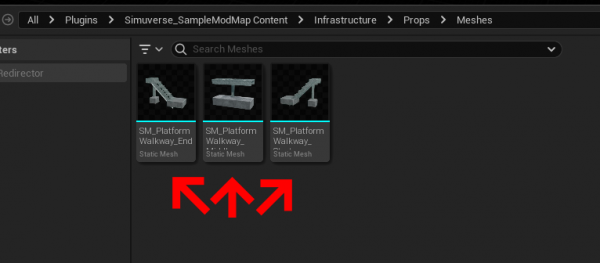
- Select all three Static Meshes
- Right-click on the selection
- Choose Migrate
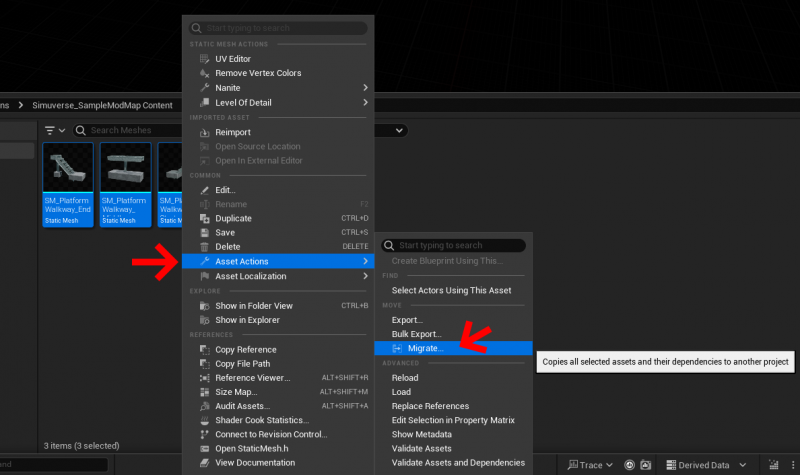
Selecting Dependencies
After selecting Migrate, Unreal Engine will show a window listing all dependencies required by the selected assets.
This step is extremely important.
Important
Any dependency that originates from the plugin:`SubwaySim2_Modding`must NOT be selected.
These references must remain untouched, as they are part of the core game content and will always be available at runtime.
This behavior is explained in more detail here:
Understanding the Plugin System
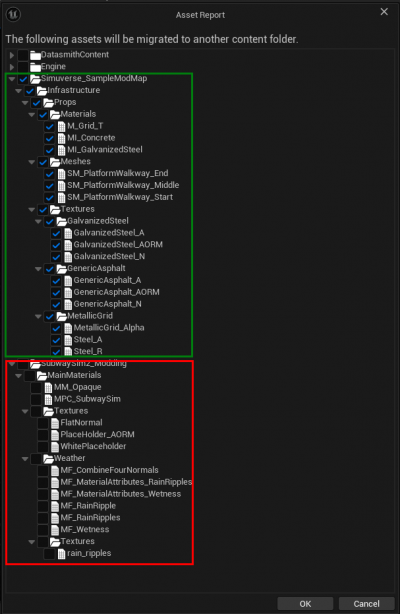
Only select dependencies that belong to the SampleMod plugin or are required for the asset to function correctly.
Once the correct dependencies are selected, click OK.
Choosing the Target Plugin
After confirming the dependencies, a Windows Explorer window will open.
Now you must select the Content folder of your target plugin.
⚠️ Important: Migration works only into a plugin’s Content directory.
Example target path:`SubwaySim_Extern / SubwaySim_SDK_Testplugin / Content`
Select the Content folder and click Select Folder.
Result
Unreal Engine will now copy:
- The selected assets
- All required dependencies
into your plugin while keeping all references intact.
The migrated assets are now fully part of your plugin and can be:
- Used freely in your map
- Modified if needed
- Packaged correctly when building the mod
This concludes the asset migration process.
Next Step
Now that the required assets have been migrated into your plugin, the next step is to define how tracks are constructed and configured.
In the following chapter, you will learn how to create and configure Superstructures, which form the foundation for track generation in the Railtool.
© 2026 Simuverse Interactive · SubwaySim 2 Modding Wiki
All trademarks and registered trademarks are the property of their respective owners. This Wiki is provided for documentation and modding purposes only.